One click. Approved hours straight into QuickBooks.
Approve crew hours in Crewtrace, hit sync, and watch them land in QuickBooks Online or Desktop with the right employee, job, and pay item already mapped. No CSVs. No copy-paste. No more Thursday timesheet grind.
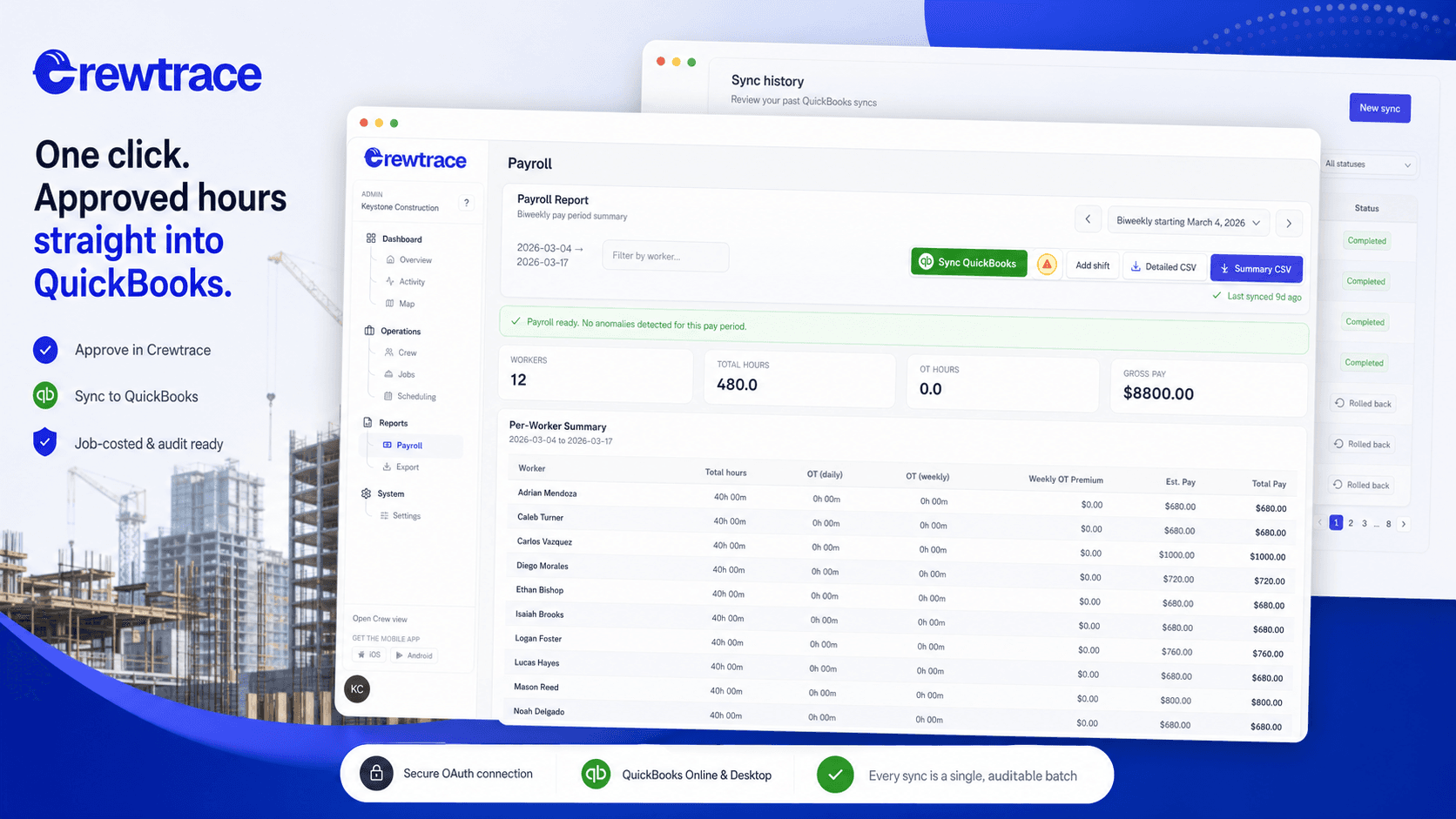
No more double entry
The gap between the field and the ledger.
Field data is messy. QuickBooks needs it neat. Retyping hours into QuickBooks is a chore; uploading spreadsheets is a risk. We built a direct link.
The Thursday timesheet grind
Every pay period, somebody loses three hours retyping approved hours into QuickBooks line by line — and a single typo means a wrong paycheck.
CSV imports that almost work
One mismatched name, one renamed job, and the whole import either fails or quietly posts the wrong hours to the wrong customer.
Job costing that doesn't match
Field hours live in one system, QuickBooks lives in another, and the labor numbers on the project P&L never quite tie out.
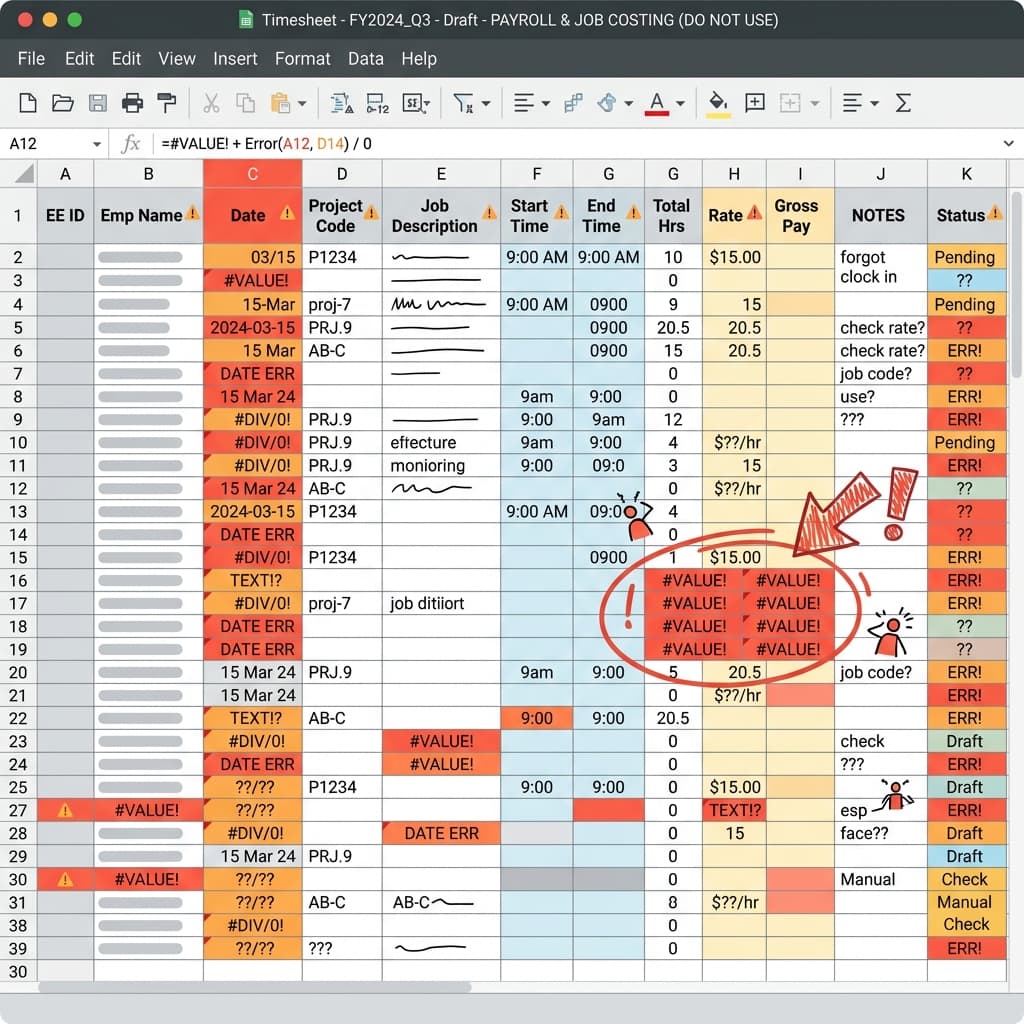
- Hours retyped from approvals into QB
- Names mismatch — silent miscoding
- Job costs that never tie out
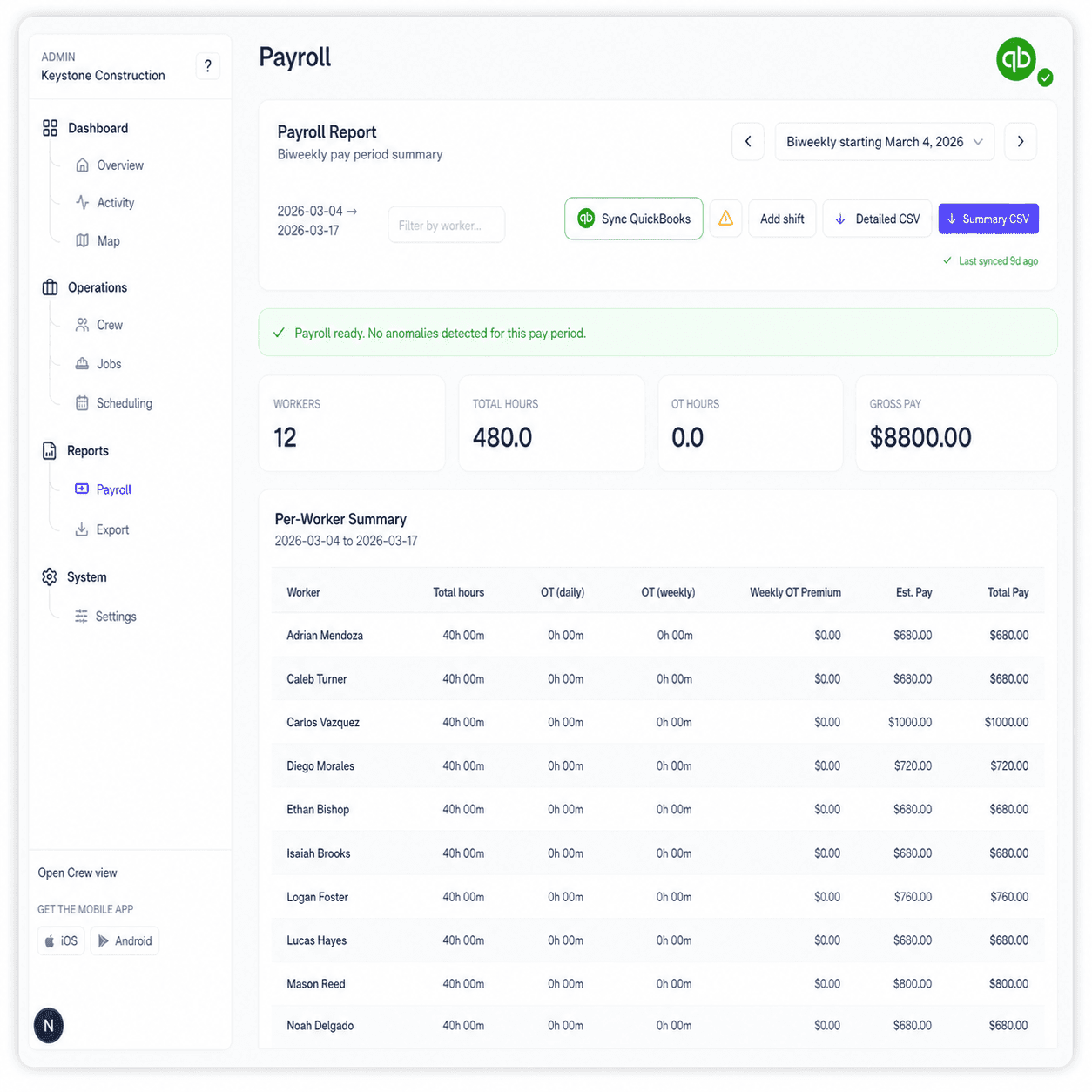
- Approved hours sync straight to QuickBooks
- Pre-flight catches issues before posting
- Job-cost reports match the field record
Inside the QuickBooks sync
Built so payroll day stops costing you a day.
One click sync · 01
Approve. Click sync. Walk away.
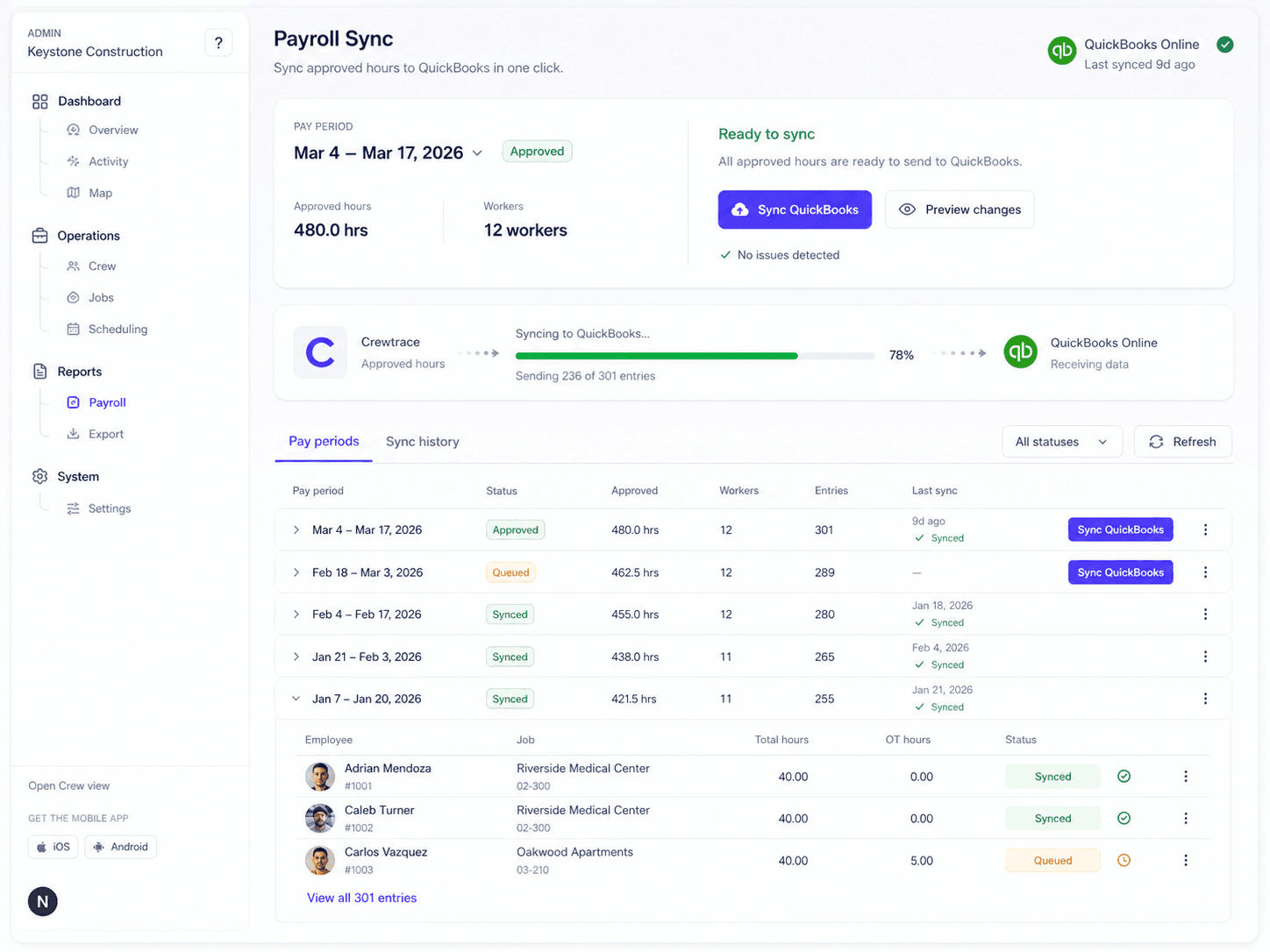
Once your hours are approved in Crewtrace, a single Sync to QuickBooks button does the rest — pulling each entry, matching it to the right employee and job, and posting it directly into QuickBooks with the right pay items attached.
- Push approved hours by pay period or by date range
- Real-time progress with a per-entry status
- Automatic retry on transient connection errors
Smart mapping · 02
Employees and jobs mapped once.
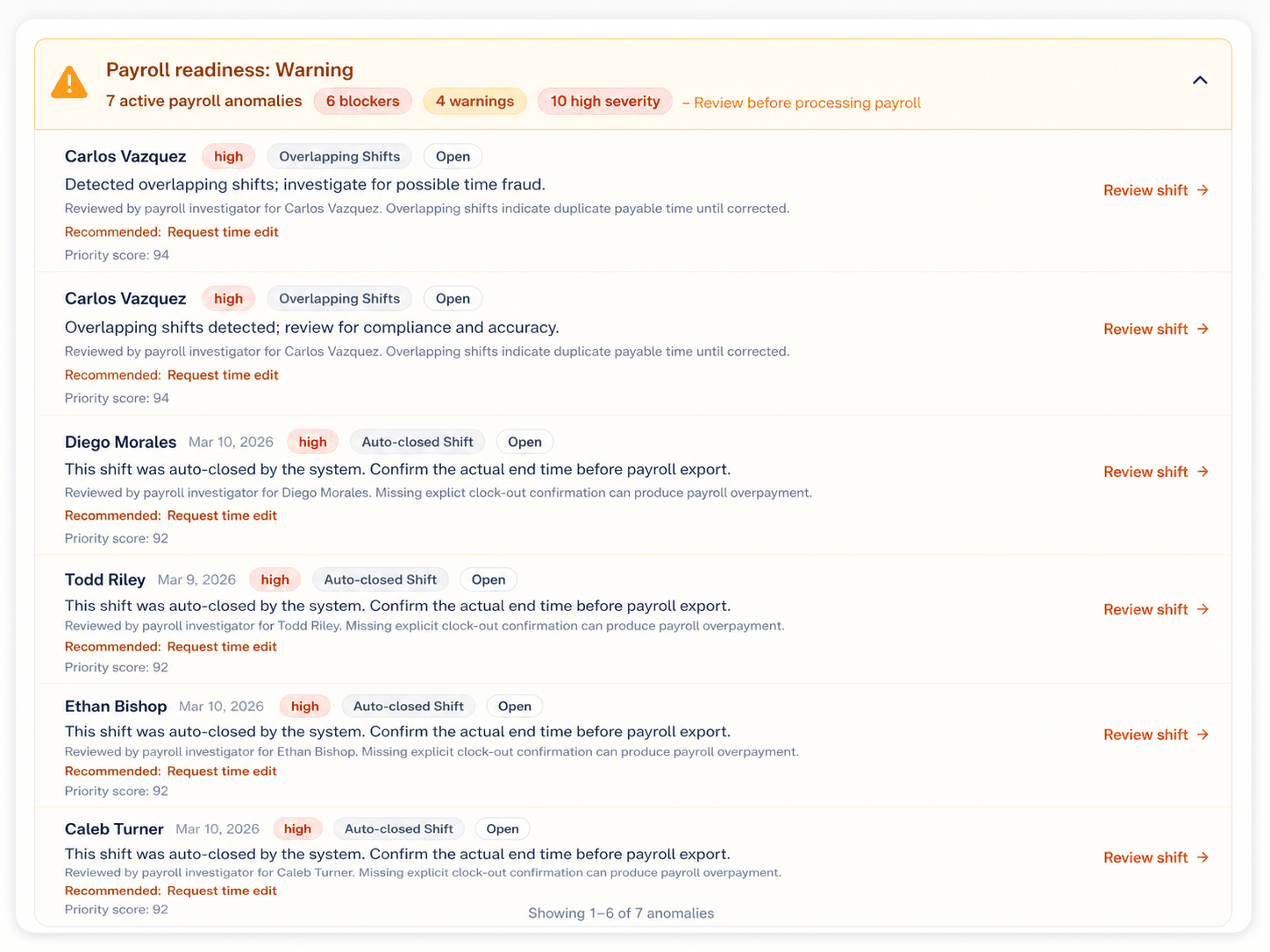
Crewtrace pulls your QuickBooks employees and customers the moment you connect. Map Crewtrace employees to QuickBooks employees and Crewtrace jobs to QuickBooks customers once, and new hires or new jobs surface as a quick review step before the next sync — never silently.
- Crewtrace Employees to QuickBooks Employees
- Crewtrace Jobs to QuickBooks Customers
- New record review step before anything posts
Pre-flight check · 03
Catch bad data before QuickBooks ever sees it.
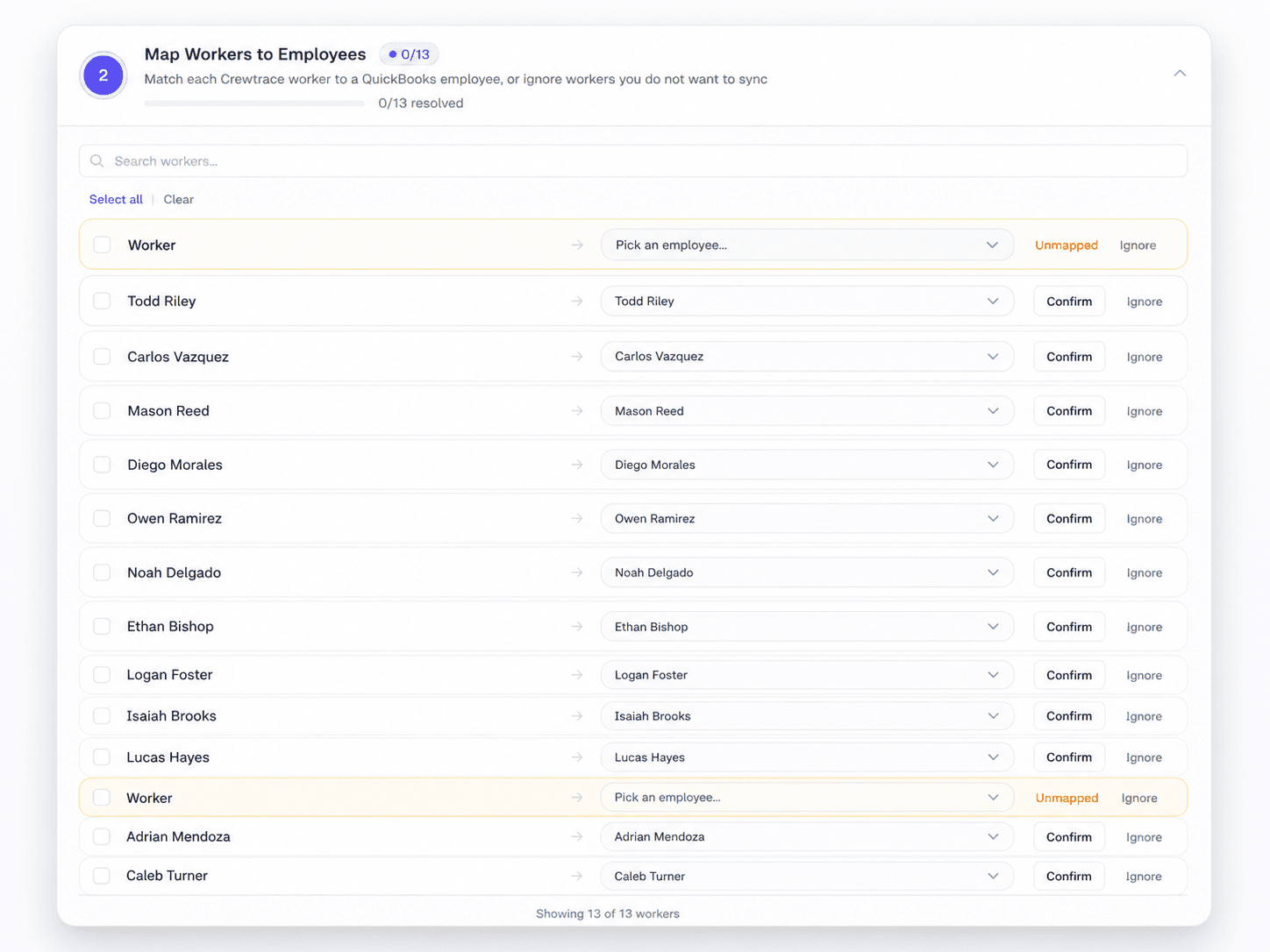
Every sync runs a pre-flight check. Missing pay items, unmapped employees, jobs that no longer exist in QuickBooks — they all surface in one review screen with a recommended fix. Nothing posts until the issues are clean, so you never end up with half an import to undo.
- Single review screen for all blocking issues
- Recommended matches based on past syncs
- Bulk-fix actions for repeating issues
Mapping that holds up
Two mappings. Set them once.
Crewtrace keeps the two records payroll depends on aligned: employees and jobs. New hires and new jobs surface as a quick review — never as a silent miscode.
Crewtrace Employees to QuickBooks Employees
Match every Crewtrace employee to the right QuickBooks employee once. New hires surface for review before the next sync.
Crewtrace Jobs to QuickBooks Customers
Link each Crewtrace job to its QuickBooks customer so synced labor lands on the right customer record.
What's in the box
Six things the QuickBooks sync does for you.
QuickBooks Online + Desktop
Native QBO API integration plus a Desktop connector for Pro, Premier, Enterprise, and Contractor.
One-click pay-period sync
Push an entire pay period — or a custom date range — to QuickBooks in a single action.
Pre-flight validation
Unmapped employees, missing jobs, or stale pay items get caught before anything is written.
Job-costed labor
Every entry posts with its customer, job, and service item attached so job-cost reports match the field.
Overtime calculated upstream
Crewtrace applies your overtime rules and posts each portion to the matching QuickBooks pay item.
Batch audit & rollback
Every sync is a single batch with a complete log and a one-click rollback for the whole pay period.
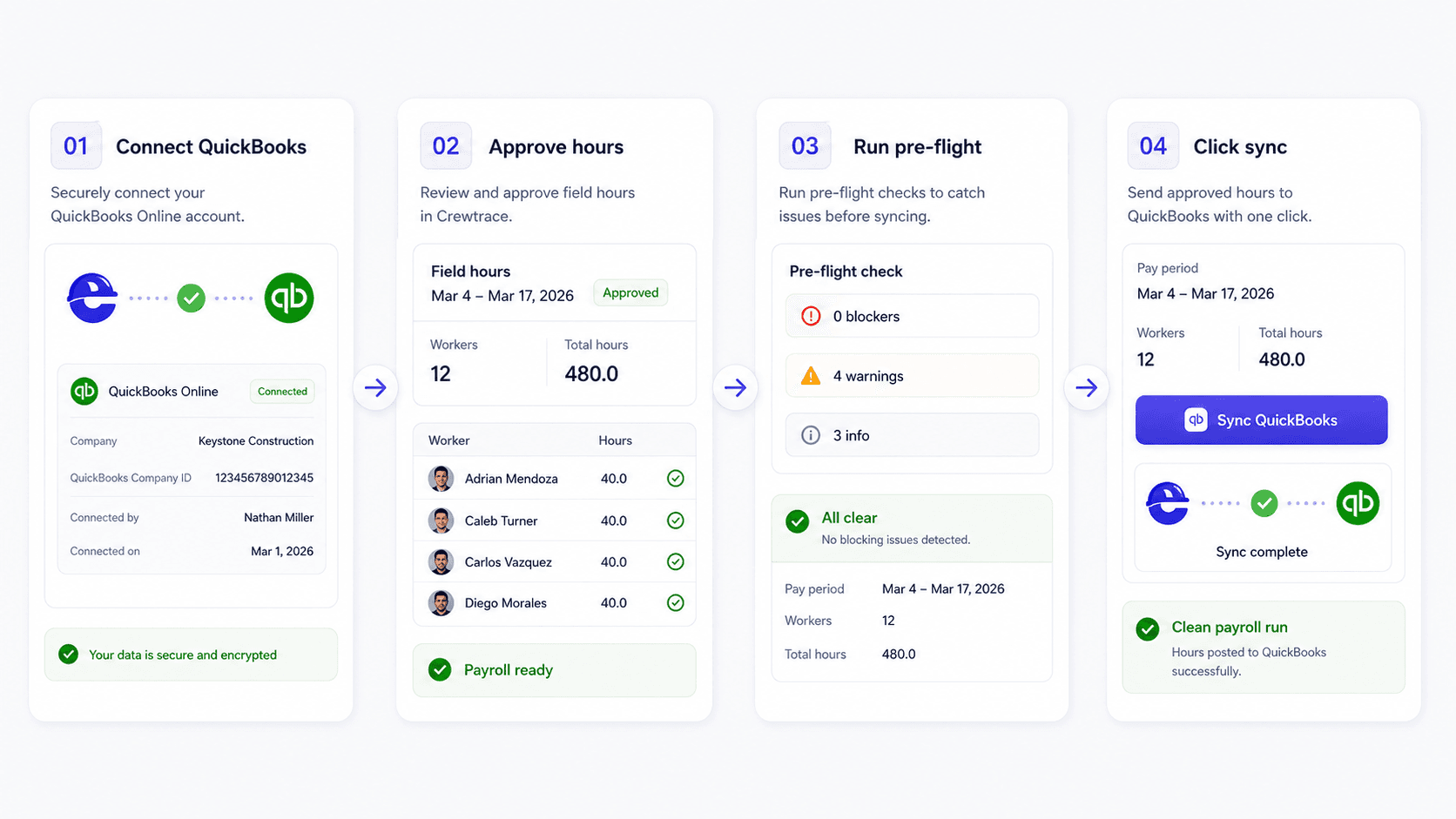
From approval to QuickBooks
Four steps from field hours to a clean payroll run.
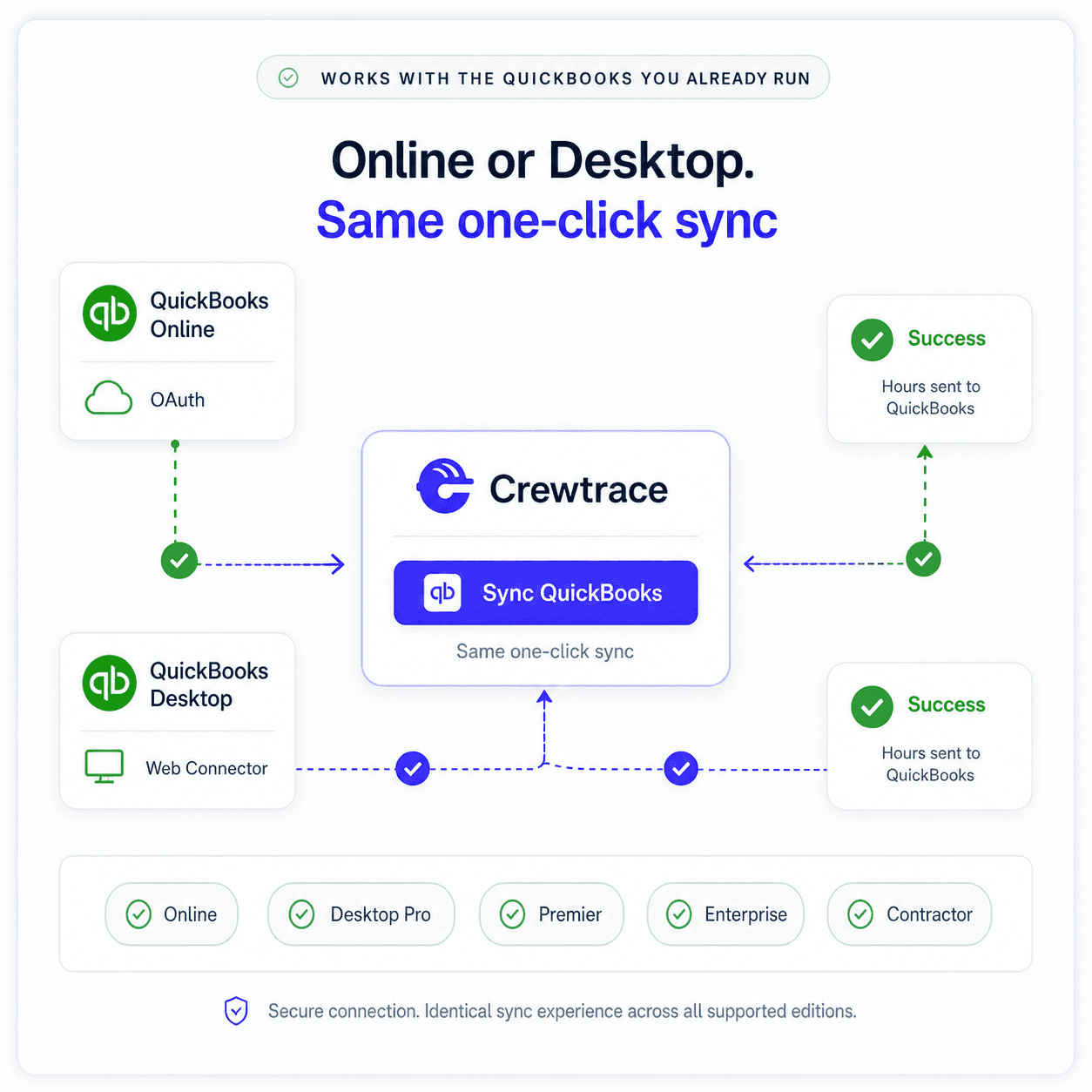
Works with the QuickBooks you already run
Online or Desktop. Same one-click sync.
QuickBooks Online connects with a one-time OAuth handshake. QuickBooks Desktop installs a lightweight Web Connector that pushes approved hours on demand or on a schedule. Either way, the Crewtrace experience is identical.
CSV imports vs. Crewtrace sync
Same hours.
Two very different payroll days.
Today
CSV exports & retyping
After rollout
One-click QuickBooks sync
How hours get into QuickBooks
Type each entry by hand
How hours get into QuickBooks
One-click sync of approved hours
Pay-period close time
Hours of retyping every week
Pay-period close time
Minutes — most of it is review
Mismatched names or jobs
Silent miscoding and broken reports
Mismatched names or jobs
Pre-flight blocks the sync until clean
Job costing accuracy
Field record vs. QuickBooks rarely tie
Job costing accuracy
Same record drives both
Undo a bad pay period
Hunt and delete entries one by one
Undo a bad pay period
Roll back the whole batch in one click
~3 hrs/period retyping, fixing imports, reconciling
One record. Approved hours straight into QuickBooks.
Built for the trades
Payroll sync that fits how your trade actually bills.
Multi-site weeks with crews split across customers and jobs
Labor lands on the correct customer and sub-job in QuickBooks every pay period.
See construction workflowMix of W-2 employees and subs across active projects
Sync employee hours to QuickBooks and keep sub records cleanly separated.
See general contractors workflowService techs hitting six to ten calls a day
Each call ties to the right customer and pay item with no manual entry.
See hvac workflowService plus new construction running side by side
Two job streams, one QuickBooks file, one click to sync the week.
See plumbing workflowPhased rollouts with overtime that creeps late in the week
Overtime calculates in Crewtrace and posts to the right QuickBooks pay item.
See electrical workflowCrews rotating across residential addresses each day
Every address ties to a QuickBooks customer for clean job-cost reporting.
See roofing workflowWhat changes on payroll day
Less retyping. Cleaner job costs. Same QuickBooks file.
1 click
From approved hours to QuickBooks
0
CSV files in the new payroll workflow
~3 hrs
Saved per pay period on a 25-person crew
100%
Of synced entries job-costed automatically
QuickBooks sync questions, answered
Answers to common questions about quickbooks payroll sync, supported editions, mapping, and how the sync fits into payroll day.
Yes. Crewtrace syncs with QuickBooks Online via the official API and supports QuickBooks Desktop (Pro, Premier, Enterprise, and Contractor editions) through a lightweight connector. Both paths push approved hours with the same employee, job, and pay item mapping.
When you connect QuickBooks, Crewtrace pulls in your employee list, customers, jobs, service items, and payroll items. You map each Crewtrace worker and job once, and after that new hires and new jobs surface as a quick review step before sync — so the mapping never drifts silently.
The sync runs a pre-flight check before anything is written to QuickBooks. Any unmapped employee, job, or pay item is surfaced in a single review screen with a recommended match. Nothing posts to QuickBooks until the issues are resolved, which prevents the partial imports that CSV uploads usually create.
Yes. Every sync is recorded as a single batch with a full log of which time entries were sent, what they mapped to, and which QuickBooks records were created or updated. You can roll a batch back from Crewtrace and re-run it after corrections.
Yes. Approved hours are sent with the job, service item, and pay item attached, so QuickBooks job-cost reports reflect the same labor your supervisors approved in the field. Overtime is calculated on the Crewtrace side using your overtime rules and posted to QuickBooks with the correct pay items.