Know your labor burn
before payroll closes.
Compare planned labor to real labor by job and work type — calculated automatically from the same clock events your crews already use. No spreadsheet reconciliation after the fact.
Sound familiar?
Job costing fails when the field and the spreadsheet never meet.
Most contractors do not lack budgets. They lack a live connection between clock events, work types, and the labor numbers finance needs before margin is gone.
The Friday spreadsheet rebuild
Labor budgets live in Excel while actual hours live in timesheets. By the time someone reconciles them, the week you could have fixed is already in payroll.
Job cost that arrives too late
You find out a job blew its labor budget after payroll closes — when the only option left is to eat the margin or argue about numbers nobody tracked in the field.
Hours with no work type
Crews clocked the time, but nobody tagged demolition from framing. Reporting becomes guesswork and cost-code breakdowns never tie to real clock events.
Inside Crewtrace Job Costing
Setup once. Capture in the field. Read the dashboard all week.
Admin setup · 01
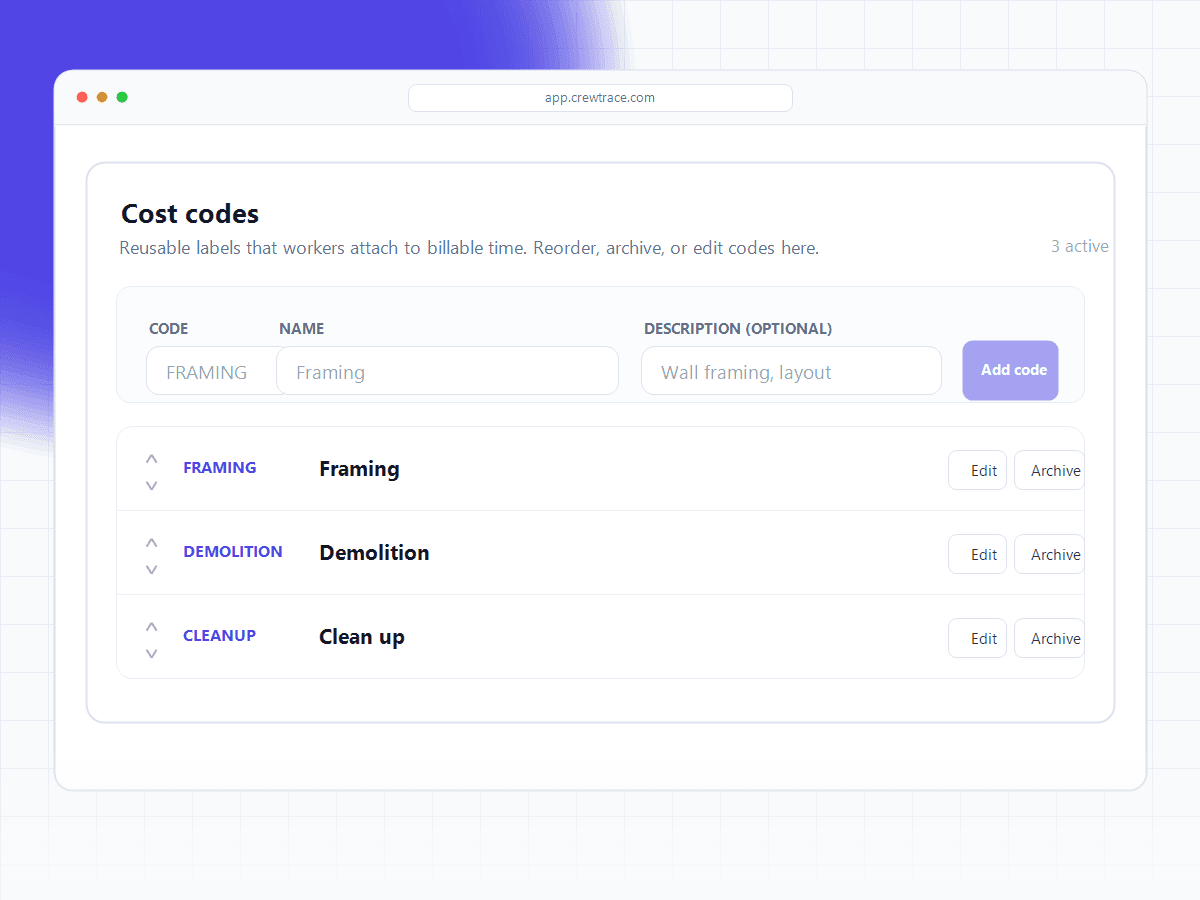
Cost codes your whole company shares.
Define work types once — demolition, framing, electrical, cleanup — with short codes crews recognize, optional descriptions, billable defaults, and display order. Archive a code and historical reporting stays intact.
- Company-wide work types with short codes and names
- Billable defaults and custom display order
- Archive without losing historical reporting
Field capture · 02
One extra tap. Tied to real clock events.
On the worker clock, crews pick a work type at clock-in and when switching jobs. Selections land on each shift segment, so reporting reflects verified time — not estimates typed in later.
- Work type at clock-in and job switches
- Tied to the same time slices payroll already uses
- Simple labels in the field, full detail in the report
Image placeholder
Mobile work type selection at clock-in
Worker picks demolition, framing, or electrical before starting the shift
Live dashboard · 03
Budget burn you can act on this week.
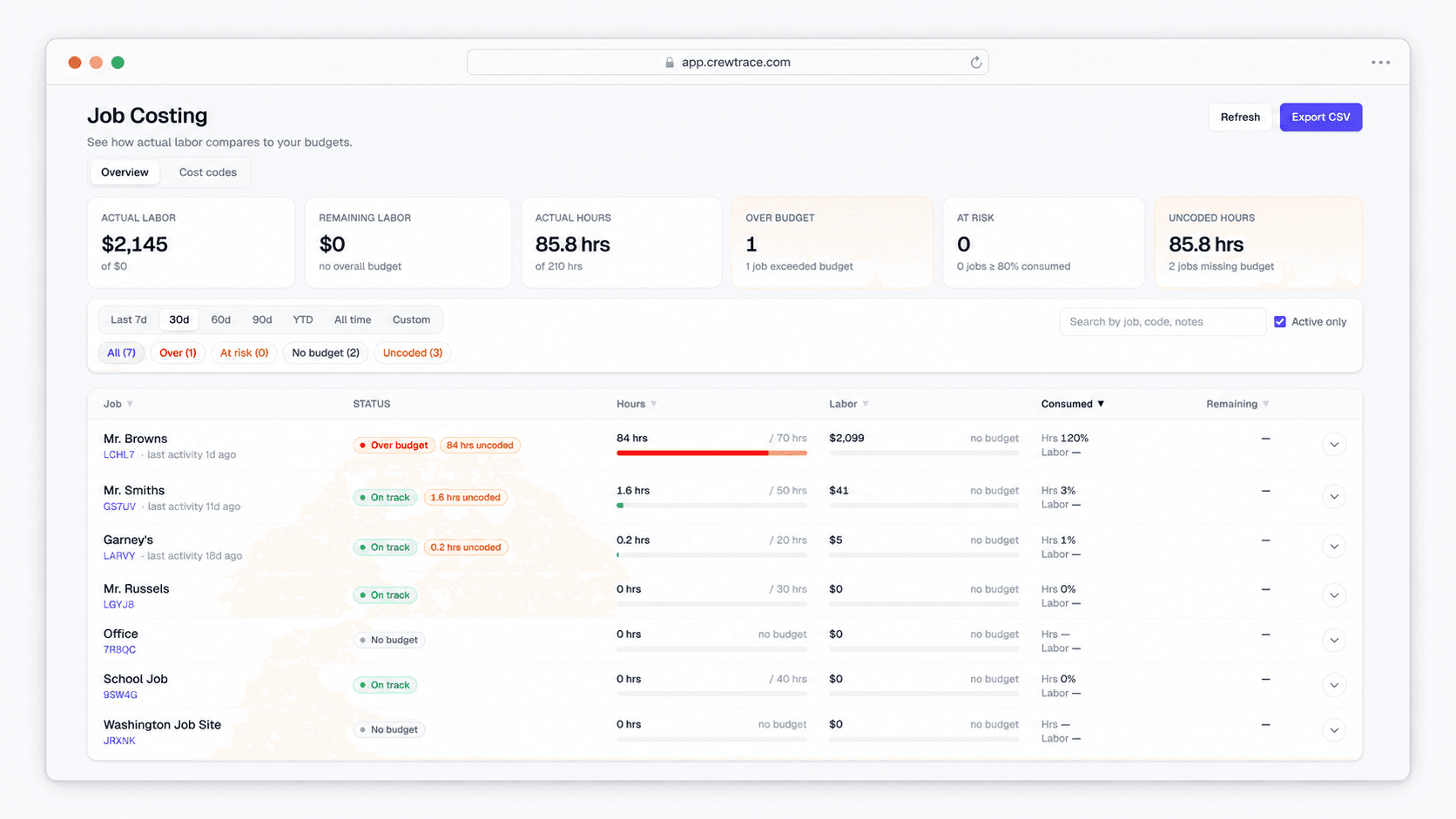
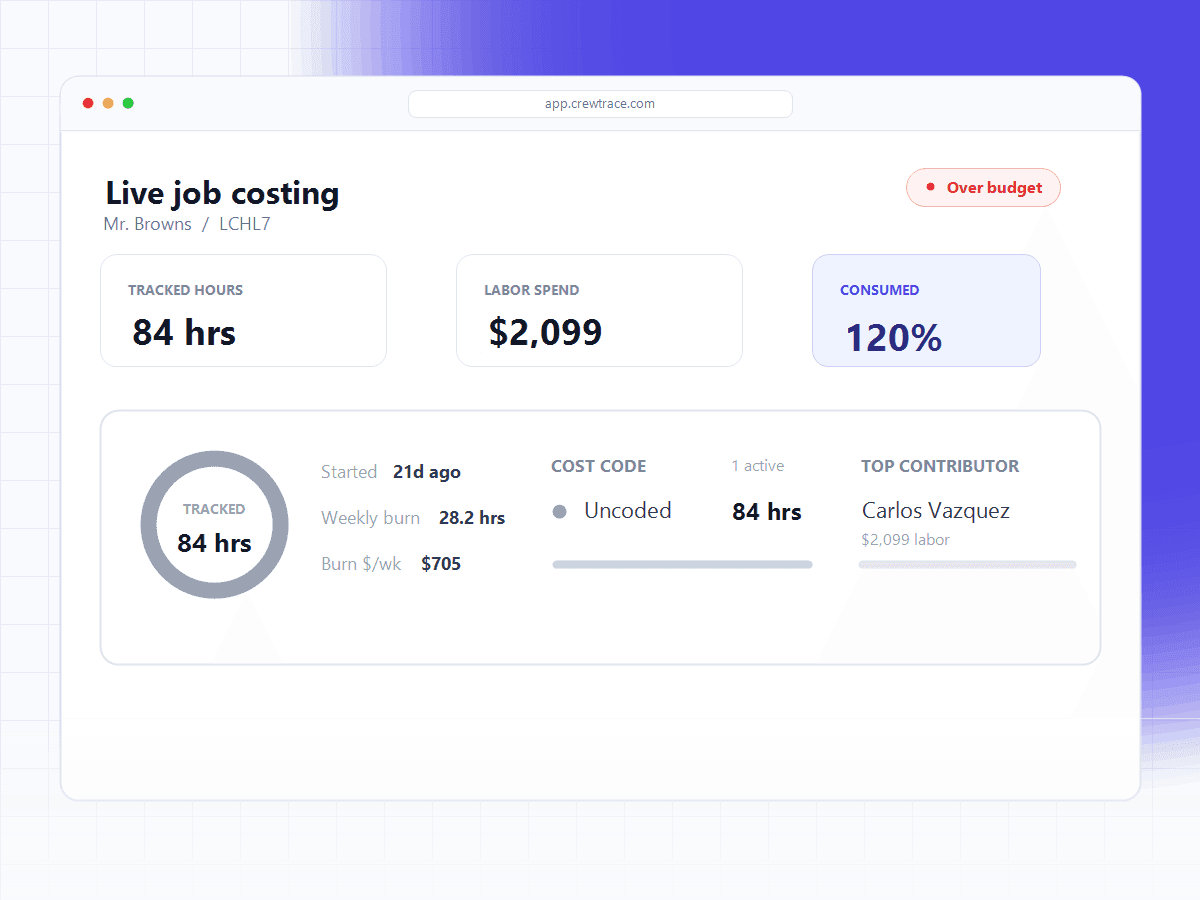
The Job Costing report answers what contractors actually need: how much labor have we spent vs. budget, which jobs are over, at risk at 80%+, on track, or missing a budget, and how many hours are uncoded. Expand any row for cost-code breakdown and top contributors by worker.
- Portfolio KPIs and status filters
- Weekly burn rate and days-until-budget estimate
- CSV export for finance and estimating
Margin protection
Catch labor overruns while you can still do something about them.
Job costing turns verified clock events into budget-vs-actual visibility — by job, by work type, and across your whole portfolio — so margin problems surface mid-week, not after payroll closes.
- See which jobs are over budget, at risk, or missing a budget
- Break down labor by work type without manual entry
- Spot uncoded hours before they become reporting gaps
Over budget
2 jobs
At risk
4 jobs
On track
11 jobs
Uncoded hours
12h
One connected workflow
Planned labor and real labor, on one continuous record.
Job costing isn't a side report in Crewtrace. It's a live pipeline from the clock event to the budget line — with cost codes attached the moment crews clock in.
Define work types once
Create reusable cost codes — demolition, framing, electrical, cleanup — with short codes, names, descriptions, and billable defaults your whole company shares.
Set labor budgets on jobs
Give each job an optional budget in hours and dollars, plus notes. Compare planned labor against what the field actually produces.
Crews tag work at the clock
Workers pick a work type at clock-in and when switching jobs. Each selection stays tied to the shift segment it came from.
Actuals calculate themselves
Hours and labor cost come from shift segments and hourly rate snapshots — not manual entry after payroll closes.
Image placeholder
Connected workflow pipeline
Define codes → Set budgets → Tag at clock-in → Dashboard updates automatically
Job Costing report
The questions it answers — without a second system.
Portfolio KPIs, job-level breakdowns, and CSV export — under Reports and in the Jobs workspace.
How much labor have we spent vs. budget?
Which jobs are over budget, at risk, on track, or missing a budget?
How many hours are uncoded — time without a work type?
What is the weekly burn rate and days until budget runs out?
Who are the top labor contributors on this job?
Can finance get this into a spreadsheet?
Spreadsheet vs. Crewtrace
Same labor. Two very different views of margin.
One reconciles after payroll. The other reads from the clock all week.
After payroll
The spreadsheet stack
During the week
Running on Crewtrace Job Costing
Labor actuals
Re-keyed from timesheets after payroll
Labor actuals
Calculated from shift segments automatically
Cost codes
Spreadsheet column someone maintains
Cost codes
Selected at clock-in, stored on each segment
Budget visibility
Discovered when the job P&L closes
Budget visibility
Live — over, at risk, on track, uncoded
Work type breakdown
Manual pivot table every Friday
Work type breakdown
Expand any job row in the dashboard
Source of truth
Spreadsheet assumptions and memory
Source of truth
Verified clock events with work types attached
Too late to fix the week that already closed
Budget burn, work types, and labor cost from verified shift segments.
Built for contractors
Job costing that fits how your trade actually runs.
Multi-site weeks with crews split across phases
Compare framing vs. electrical burn on each job before payroll closes.
See construction workflowPortfolio of active jobs with different labor budgets
See which projects are over budget or at risk from one dashboard.
See general contractors workflowInstall crews mixing rough-in, startup, and punch-list work
Tag hours by work type at the clock instead of reconstructing them later.
See hvac workflowPhased rollouts where overtime sneaks in late in the week
Track labor against budgeted hours while you can still reassign crews.
See electrical workflowRough-in vs. finish work on the same job address
Break down labor by work type without a second timesheet system.
See plumbing workflowFinance wants CSV job-cost data for estimating
Export the dashboard to spreadsheets with one click.
See any trade workflowWhat changes
Planned labor and real labor in one place — not two systems reconciled on Friday.
0
Manual labor-cost entries after rollout
80%
Threshold for at-risk job alerts
Live
Budget burn vs. waiting for payroll
CSV
Export for finance and estimating
Job costing questions, answered
Answers to common questions about construction job costing, rollout expectations, and how budget vs. actual labor connects to your existing Crewtrace workflow.
Workers pick a work type at clock-in and again when switching jobs. Each selection is stored on the shift segment it belongs to, so labor reporting stays tied to verified clock events instead of estimates added later.
Work types are the field label for reusable cost codes — categories like demolition, framing, electrical, or cleanup. Admins define short codes, names, optional descriptions, billable defaults, and display order company-wide. Archived codes stay out of new selections but historical time remains intact.
They are not entered manually. Crewtrace calculates them from shift segments — the same time slices used when workers switch jobs — using hourly rate snapshots captured on the shift when available, with fallbacks to stored member rates.
Portfolio KPIs for actual vs. budget labor and hours, counts of over-budget and at-risk jobs, and uncoded hours. Filter by date presets or custom ranges and status, sort jobs, expand any row for a cost-code breakdown and top contributors, see weekly burn rate and estimated days until budget runs out, and export to CSV.
Yes. Each job can carry an optional labor budget in hours and dollars, plus budget notes. Actuals are calculated automatically from clock data so you can compare planned labor to what the field actually produced.
No. Job costing builds on the same geofenced attendance, job sites, and per-job time segments Crewtrace already captures. It adds budget-vs-actual visibility and work-type breakdowns on top of the record you are already running payroll from.